Monday, December 19, 2022

How-To: Cricut Design Space on PC & Android Part 1 Overview of Home

 Hey Y'all!

This blog has been requested a few times now, and I'm excited to share an overview, and how to with you...

In part one I'm going to go over how to find and install DS, the Home Screen, menus, and what they do, and a general overview of all the "other" (non design) spaces within Design Space.


There are a lot of fake design space links out there, and they try to charge you but...

Design Space is free! (Unless you choose to have access.)


PC~

Design Space link:

https://design.cricut.com/#/


How To install:

https://help.cricut.com/hc/en-us/articles/360009428814-Downloading-and-Installing-Design-Space

More info on access:

Cricut Access


Open Design Space:

Sign in.

Here's my Home Screen:


From the LEFT:

The drop down menu (referred to as the hamburger menu)~


1) Your Name


2) View Profile (this is where all your public saved projects, and a blurb about yourself, and any other info you want to share will be. Optional.)

Mine looks like this~

https://design.cricut.com/landing/profile/5b9ba957cc8e76062d1231c9


3) Home

Takes you back to that start/home screen.


4) Canvas

This is where all your design work, prep, etc will be.

Here's a look at the blank canvas~

We'll get more in depth with this later.


5) New Product Setup

This is where you'll let the program know which machine(s) you have, and connect them to your account.

Each one will walk you through the set up process once you choose your machine. (If you have more than one, they all need separately set up.)


6) Calibration (Used for print then cut projects)

DS (Design Space) will prompt you to print a calibration sheet, on regular copy paper. Then load into your Cricut, and follow the on screen prompts.


7) Manage Custom Materials

This extensive list (far longer than the picture) allows you to change the cut settings for every material your machine can cut. I have never had the need to manually change the settings, beyond the more or less pressure options in the make screen. However if you use a material often you could make a custom setting for it specifically.


8) Update Firmware

This is the first firmware update I've ever done, it took less than 5 seconds for both of my machines.


9) Account Details

Literally that, all your account details, email preferences, subscriptions, order history, etc.


10) Link Cartridges (Explore Family)

No longer works, if you have cartridges to link you must call member care. 

https://help.cricut.com/hc/en-us/articles/360020316674-Cricut-Contact-Information


11) Cricut Access

Easy button to subscribe.


12) Settings

A~ General Settings

B~ Canvas
I prefer no grid, but this is where you choose whichever work for you.

C~ Load Type
I've never messed with these, the machine will prompt you  from the make screen.

D~ Notifications
Didn't even know this existed, it only notifies you in DS so having them on doesn't bother me.


13) Legal

The fun stuff: https://cricut.com/legal


14) What's New

The latest update notes.

15-17)

Country, choose yours.

Help, quick link to phone number

Sign Out 

------------------------------------------------------------------------------------------------------

File- New Window, Quit

I never use this quit, I just X out.

You can run more than one DS project at a time with multiple windows open, but I rarely do this. If  I have a large project I tend to weed the first bit while the second is cutting, so I can't be designing too.


View- Reload, Full Screen

If DS is acting up I just close it and restart rather than reload, I've never had reload actually work for me.

I just use the windows button, and leave DS full screen always.


Help- Help, Contact Member Care, Videos, About

Never used any of these from this menu. 

Help: https://help.cricut.com/hc/en-us

Videos: Cricut - YouTube

About:

Attempted to bring up another DS window, and froze~

------------------------------------------------------------------------------------------------------

Bell Icon~ Notifications

My Stuff~ All your saved projects, projects you've bookmarked. Images you've bookmarked, uploaded, and purchased. Your collections (5 available for non access members, unlimited with access).


Optimize Experience For...

This allows you to see images, and projects that are tailored to your machine. 


New Project~

Opens a new canvas. Will prompt you if you have an open unsaved project.

----------------------------------------------------------------------------------------------------

Android App:


The app on the play store~

https://play.google.com/store/apps/details?id=com.cricut.designspace


Again, DS App is free, if it's trying to charge you it's not the Cricut application.

Once you've got it downloaded:


Things look a little different on the Home Screen, but the functionally at this point is the same.

 The home button, and my projects are at the bottom of the screen, notifications are on the left, canvas on the far right, and you can only work on one project at a time. All other options from here function almost identical to the PC version.

The big differences come in the next part(s) of this blog series, when we get on canvas, and start working within that.


What are you most eager to learn in Design Space? Let me know in the comment section below!


Have a great day,

Craftin' Wife

Friday, December 16, 2022

Life Update: What Have We Been Up To & Winter Plans

 Hey Y'all!

Previous Updates:

http://craftinwifescreations.blogspot.com/2022/11/whats-up.html

http://craftinwifescreations.blogspot.com/2022/09/our-fall-plans.html


What's up?

We've finished Christmas shopping, all the presents are wrapped and under the tree. All the food we're bringing I finished shopping for today. (The store wasn't too busy, but the traffic was pretty heavy.)

I also had a port flush today, everything still looks good. Next scan and follow up are in late February.

In November We did the Black Friday shopping and took our nephew. It wasn't the least bit busy which surprised us. We shopped 'til we dropped, but didn't buy much- just enjoyed the tradition of it & spending some time with the nephew.

Until today it's been unseasonably warm, which I've enjoyed! Today still isn't bad but 40 (degrees F) feels real cool after 60's. It is supposed to get & stay cold from here on out according to the forecast, but they do well to predict about 3 days at a time.

Hubby's work Christmas dinner (family) was nice, traditional foods for the most part. We enjoyed socializing. His actual dinner at work was last night, they had steak dinners, and received a $50 Visa gift card (that we used on groceries today).

Our towns Christmas parade is tomorrow, but we're thinking about adventuring to NC just because instead. We did go to the town over and watched that parade, which is larger and will feature some of the same floats. 


Photo: Kingsport Times

Winter Plans:

Nothing as far as travel goes. Maybe a day trip depending on the winter weather we get this year.

Business wise I plan to really get busy posting after Christmas. I'd like to be more active, and get more engagement on social media as well.

We haven't decided if we're moving the LR around yet or not, but we have to get the basement back together & organized. That's the biggest thing on the agenda for winter, re-doing the basement.

Beyond that- overall home organization is what's needed and winter is the perfect time to tackle the task!


What are your winter plans? Share in the comments below!


Have a great day,

Craftin' Wife


FUN FRIDAY:

Since last week I asked about the worst gift you received, this week...


Wednesday, December 14, 2022

Current Faves & Fails

 Hey Y'all!

I do a mini review, within the everyday shelf blog, monthly. Therefore I don't have a ton to share right now (less than I thought I would, in fact) but here's a few of my current favorites, and one fail.

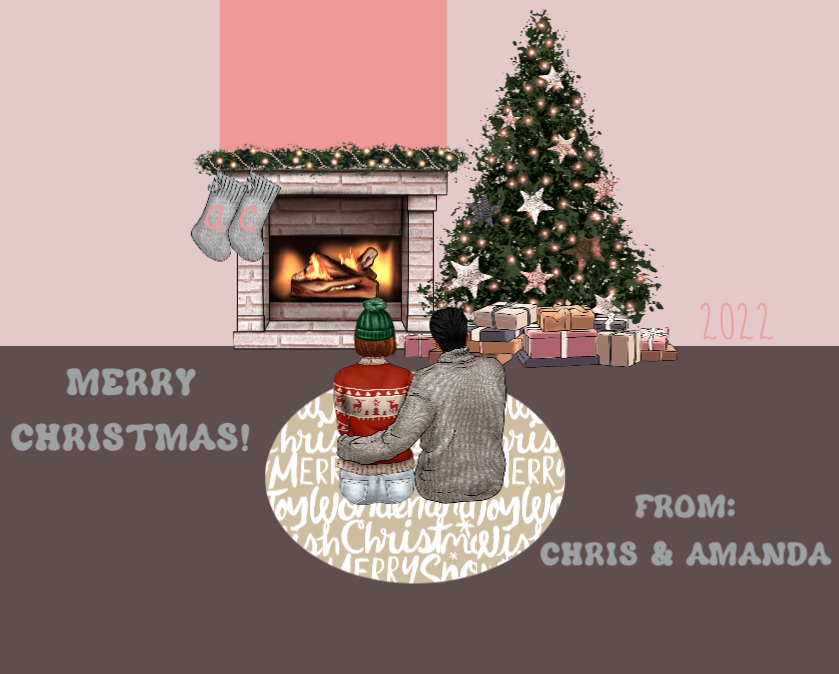
First here's our Christmas Card:


Past blogs:

http://craftinwifescreations.blogspot.com/2022/11/december-everyday-makeup-shelf-november.html

http://craftinwifescreations.blogspot.com/2022/11/makeup-declutter-pt-2-for-real.html

http://craftinwifescreations.blogspot.com/2022/10/november-everyday-makeup-shelf-october.html

http://craftinwifescreations.blogspot.com/2022/10/october-everyday-makeup-shelf-september.html


Favorites:

1) Pretty much all of this~

Colourpop x Disney's The Muppets

(Full review HERE.)


If I had to choose one or two stand out products it would be the red Beat Drums Super Shock Shadow, followed by Chill, Chill, Chill Glowing Lip.

2) Too Faced Christmas Bake Shoppe Palettes~

3) Too Faced Pillow Balm Pop* (Lip Gloss)~


Do y'all want a review on this one too? Let me know in the comments below!

I really like the Sugar Cookie palette, especially the minty shade. I was surprised that out of the three this one has been my favorite.
The balms are nice too! The strawberry is my favorite of the 3, but all are nice.
*I couldn't find it on Too Faced site, and is is limited edition, but as of the posting of this blog it's still available on Ulta.


FAIL:

1) Pacifica Pineapple Bubbles Clarifying Mask~
It seems like this may have been discontinued (I can see why.) as I can't find it online.

I never could get this to work right. Maybe it was user error, but it didn't bubble, but also didn't feel like a mask (or a cleanser). I gave it several tries, and it never "worked". It also didn't do anything for my skin, it felt and looked the same before & after. The scent was okay, but fairly overpowering. I've not tried anything else from the brand, am I missing something? Let me know in the comments.


What are your current favorite beauty products? Share below!

Have a great day,
Craftin' Wife


Monday, December 12, 2022

How -To: Card Stock Earrings

 Hey Y'all!

Today I'm sharing a simple cardstock project, earrings!


Supplies:

Cardstock 

I used my DCWV scraps from previous blogs, and a pink piece from the Cricut x Martha Stewart Collection.

Earring Template 

I used my Cricut & this image:


Jump Rings

Earring Findings

I got both of these from Hobby Lobby on sale.

2 pair of pliers (or other tool to separate jump rings)

Any other embellishments you may want to add


Let's get started:

Link to this project in DS~ https://design.cricut.com/landing/project-detail/63978beeec3120ba69dcb50f


Step 1) Assemble Supplies


Step 2) Choose design.

A) We chose to layer the design. Duplicate, for a total of 3, then size to your liking.
B) Send the project to mat. Since this was a smaller project I moved all the pieces to cut from one mat instead of three. Would you like a how to on this? Let me know in the comments below!


Step 3) Cut your earring template!
With this cardstock on my Cricut Explore One this is the setting I chose:


Step 4)  Assemble! Would you like a step by step on this? Let me know in the comments and I'll make a short video.

Open your jump ring,
 add your cardstock pieces, 
 add your earring hook,
 close the jump ring.
Embellish as you choose.
(I added an additional jump ring, but that's not a necessary addition. Do whatever you like. The more jump rings you add, the longer the earring.) 


Step 5) Admire your work!


If you have any questions about any of the steps please ask in the comment section, or find me on social media, I'll get back to you ASAP.


Have a great day,

Craftin' Wife


Other Paper Crafting How-To's:

http://craftinwifescreations.blogspot.com/2022/11/how-to-simple-thanksgiving-placemats.html

http://craftinwifescreations.blogspot.com/2022/10/how-to-halloween-treat-bags.html

http://craftinwifescreations.blogspot.com/2022/09/how-to-stencil-with-cricut.html