Showing posts with label Design Space. Show all posts

Monday, July 21, 2025

My Favorite Design Space Projects Right Now

  Hey Y'all,

As I mentioned in the previous blog, I haven't been able to craft with Cricut much here lately, but that doesn't mean I'm not being inspired.

I check out the creativity being shared inside the project section of Design Space often! Here are a few of my favorites:


1) A2 Envelopes, DIY Craft Tutorials

Cardmaking category- I love making cards with the Joy and these envelopes add a bit of fun! 


2) Personalized Pool Float

Vinyl- I like this idea, and can visualize may possibilities on theme vs a name if you frequent a public pool more often. 


3) Mountain Bear Layered Papercraft, Marla Dorman

Paper Craft- Such a cute little guy! I could see this or something similar as wall decor in a kids room, or cabin.


4) Laundry Room Curtains, Athena Dedrick

Iron On/HTV- These are too cute! I love the OG makers use of hiding the mechanical section of her laundry room behind the curtains. 

I could also see a version with different icons in other rooms. Fruits and veggies for example in a kitchen. Space icons in Glow- in-the-Dark Iron On for a kids room, etc.


5) Halloween Stickers, Cricut Social

Stickers- I love love love the pastel Halloween trend! I can picture these on the holographic sticker paper being amazing.


6) Infusible Ink Art Bag, Jen Goode
Infusible Ink- This bag is a cute project that's functional. I could see this being switched up to fit a gift receivers hobby/preference then fill the bag with gifts and bonus no wrapping required!


I had to include one of my own! This one is quite simple, but uses a material that's not as common with Cricut crafting.


Have a great day, 

Craftin' Wife

Monday, July 7, 2025

How To: Navigate Cricut Design Space

  Hey Y'all!

This blog has been requested a few times now, and I'm excited to share an overview, and how to with you...

In this blog I'm going to go over how to find and install DS, the Home Screen, menus, and what they do, and a general overview of all the "other" (non design) spaces within Design Space.


There are a lot of fake design space links out there, and they try to charge you but...

Design Space is free! (Unless you choose to have access.)


PC~

Design Space link:

https://design.cricut.com/#/


How To install:

https://help.cricut.com/hc/en-us/articles/360009428814-Downloading-and-Installing-Design-Space

More info on access:

Cricut Access


Open Design Space:

Sign in.

Here's my Home Screen:


From the LEFT:

The drop down menu (referred to as the hamburger menu)~


1) Your Name


2) View Profile (this is where all your public saved projects, and a blurb about yourself, and any other info you want to share will be. Optional.)

Mine looks like this~

https://design.cricut.com/landing/profile/5b9ba957cc8e76062d1231c9


3) Home

Takes you back to that start/home screen.


4) Canvas

This is where all your design work, prep, etc will be.

Here's a look at the blank canvas~

We'll get more in depth with this later.


5) New Product Setup

This is where you'll let the program know which machine(s) you have, and connect them to your account.

Each one will walk you through the set up process once you choose your machine. (If you have more than one, they all need separately set up.)


6) Calibration (Used for print then cut projects)

DS (Design Space) will prompt you to print a calibration sheet, on regular copy paper. Then load into your Cricut, and follow the on screen prompts.


7) Manage Custom Materials

This extensive list (far longer than the picture) allows you to change the cut settings for every material your machine can cut. I have never had the need to manually change the settings, beyond the more or less pressure options in the make screen. However if you use a material often you could make a custom setting for it specifically.


8) Update Firmware

This is the first firmware update I've ever done, it took less than 5 seconds for both of my machines.


9) Account Details

Literally that, all your account details, email preferences, subscriptions, order history, etc.


10) Link Cartridges (Explore Family)

No longer works, if you have cartridges to link you must call member care. 

https://help.cricut.com/hc/en-us/articles/360020316674-Cricut-Contact-Information


11) Cricut Access

Easy button to subscribe.


12) Settings

A~ General Settings

B~ Canvas
I prefer no grid, but this is where you choose whichever work for you.

C~ Load Type
I've never messed with these, the machine will prompt you  from the make screen.

D~ Notifications
Didn't even know this existed, it only notifies you in DS so having them on doesn't bother me.


13) Legal

The fun stuff: https://cricut.com/legal


14) What's New

The latest update notes.

15-17)

Country, choose yours.

Help, quick link to phone number

Sign Out 

------------------------------------------------------------------------------------------------------

File- New Window, Quit

I never use this quit, I just X out.

You can run more than one DS project at a time with multiple windows open, but I rarely do this. If  I have a large project I tend to weed the first bit while the second is cutting, so I can't be designing too.


View- Reload, Full Screen

If DS is acting up I just close it and restart rather than reload, I've never had reload actually work for me.

I just use the windows button, and leave DS full screen always.


Help- Help, Contact Member Care, Videos, About

Never used any of these from this menu. 

Help: https://help.cricut.com/hc/en-us

Videos: Cricut - YouTube

About:

Attempted to bring up another DS window, and froze~

------------------------------------------------------------------------------------------------------

Bell Icon~ Notifications

My Stuff~ All your saved projects, projects you've bookmarked. Images you've bookmarked, uploaded, and purchased. Your collections (5 available for non access members, unlimited with access).


Optimize Experience For...

This allows you to see images, and projects that are tailored to your machine. 


New Project~

Opens a new canvas. Will prompt you if you have an open unsaved project.

----------------------------------------------------------------------------------------------------

Android App:


The app on the play store~

https://play.google.com/store/apps/details?id=com.cricut.designspace


Again, DS App is free, if it's trying to charge you it's not the Cricut application.

Once you've got it downloaded:


Things look a little different on the Home Screen, but the functionally at this point is the same.

 The home button, and my projects are at the bottom of the screen, notifications are on the left, canvas on the far right, and you can only work on one project at a time. All other options from here function almost identical to the PC version.

The big differences come in when we get on canvas, and start working within that.


What are you most eager to learn in Design Space? Let me know in the comment section below!


Have a great day,

Craftin' Wife

Thursday, May 8, 2025

How To: Download & Install Fonts in Cricut Design Space (PC)

  Hey Y'all!

This how to is written under the assumption you know the basics of Design Space. Need help? 

Start here:

http://craftinwifescreations.blogspot.com/2022/12/how-to-cricut-design-space-on-pc-android.html

http://craftinwifescreations.blogspot.com/2023/01/how-to-cricut-design-space-on-pc-part.html


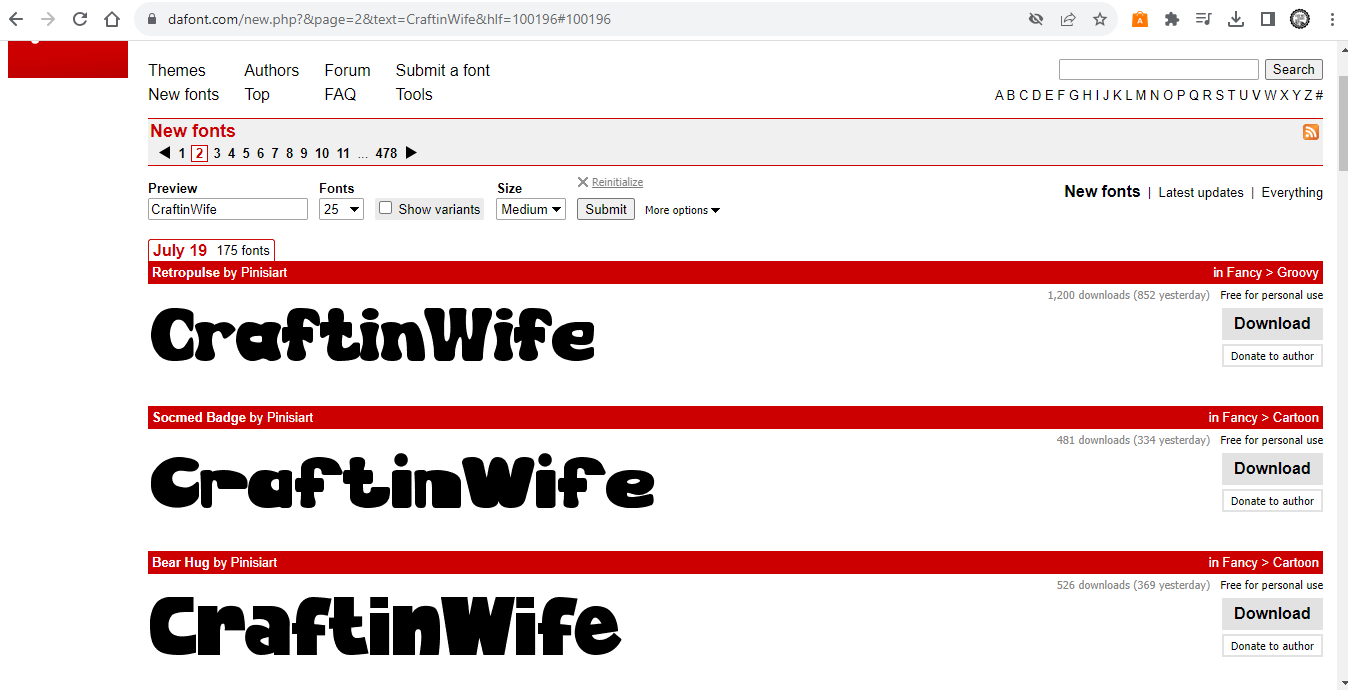
In this example I'm using Dafont, which is mostly free for personal use with the option to purchase a commercial license on the majority of fonts offered there. There are many sites to find fonts, but the process is the same. 


Other sites I like:

designbundles.net

fontbundles.net

lovesvg.com

creativefabrica.com

…just to name a few


How To-

I like to use both the default font presentation, and the font preview.


Step 1) Choose a font, and click download.


2) Find your downloads folder, and the downloaded file.


3) Click on aforementioned file. Open it by double clicking the file image, then click on OPEN TYPE FONT FILE.


4) Click Install.
It really is that easy!


5) Open Design Space, if you already had it open you'll need to reload or restart the program.


6) Your downloaded fonts will be found under the SYSTEM tab in the text menu. You can search by name, if you know what you're looking for, or scroll through.


Any questions? Leave them in the comments below and I'll get back to you ASAP!


Have a great day,

Craftin' Wife

Sunday, April 6, 2025

How To: Having Fun With Design Space
  Hey Y'all!

Now that we know all the basics, and then some, let's play around in Design Space!

Need to catch up? Start here:

http://craftinwifescreations.blogspot.com/2022/12/how-to-cricut-design-space-on-pc-android.html

http://craftinwifescreations.blogspot.com/2023/01/how-to-cricut-design-space-on-pc-part.html


First, let's start with font manipulation, and all the possibilities there-


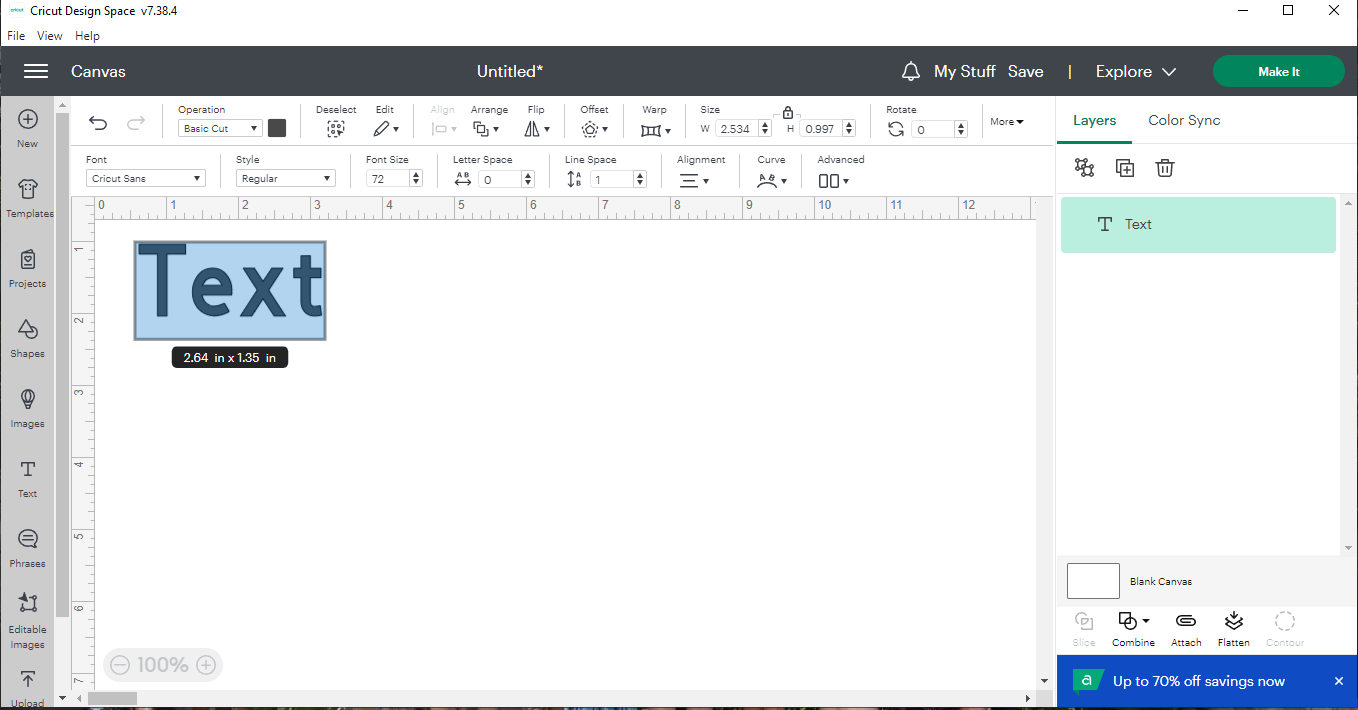
1) Design Space always defaults to Cricut Sans Text/Font.


2) Once you double click your text, you can type out whatever you'd like. The font box will also come up:
Tab 1 is Cricut Fonts
Tab 2 is the fonts you have installed
Tab 3 is anything you've bookmarked
Tab 4 is any fonts you've used recently

You can resize your text by clicking any of the corners, or mid sections, with your mouse and dragging. You can also resize your text by clicking on it and using the top tool bar: Font Size, Letter Space, and Line Space, as well as size (above the text tools) are all helpful in getting your sizing just right.


3) Next is the "style" either a regular or writing font. Writing fonts are great for use with the markers, or pens!


4) Alignment tools, we covered these in the How To Design Space Blog (linked above).


5) Curve- You can set the curve of the text where ever you'd like by using the slider.


6) Advanced Tools:
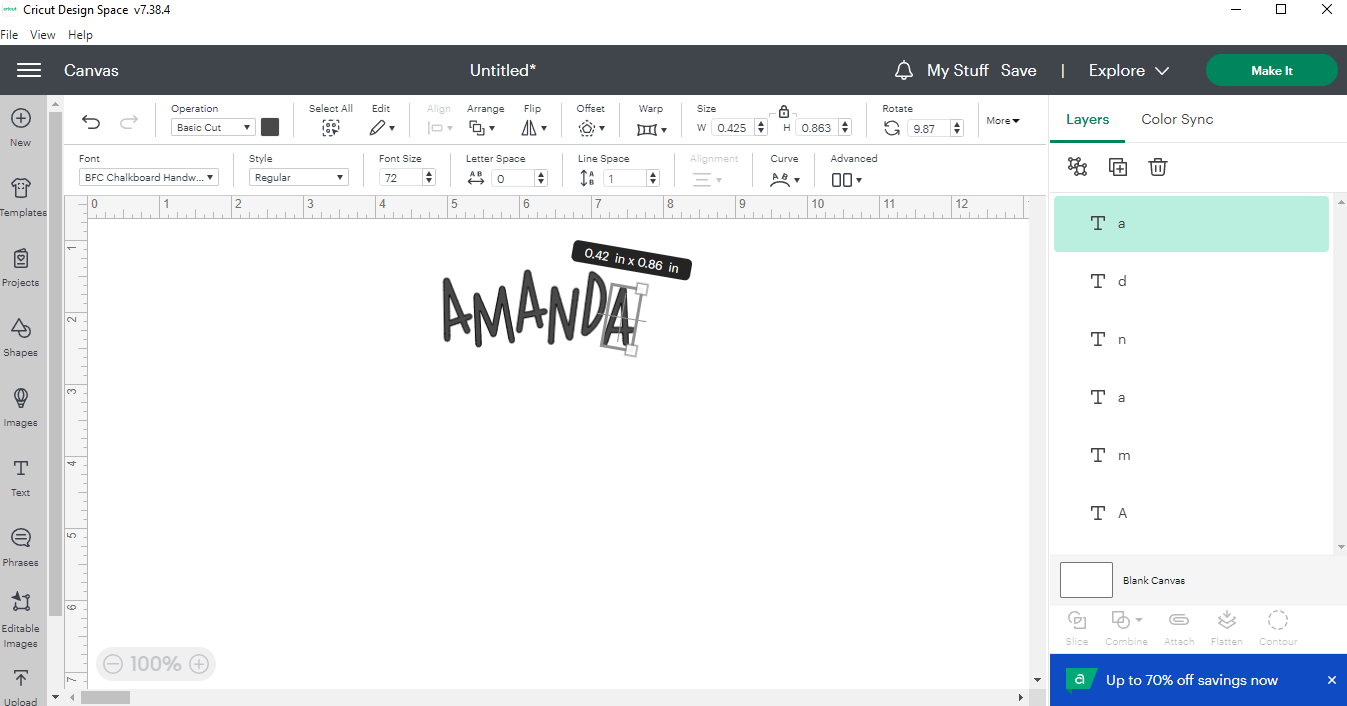
Ungroup to Letters, Lines, or Layers.


7) Now each letter, once ungrouped, is it's own image, and can be moved independently.


8) Offset. (We've went over this before too.)


9) In the layers panel, you can see each letter is still independent, so we'll unite them, and then group the (now 2) images. Uniting them will keep the placement and cut out as one, rather than each individual letter cutting out of order. This is especially helpful with script/cursive fonts.


10) Access Members Only- Warp Tool! Mentioned in detail here: https://craftinwifescreations.blogspot.com/2023/05/how-to-cricut-design-space.html


There's so much you can do with fonts! If you have any questions leave them in the comment section below!


Image Editing 101-

There's a lot to cover here, but I'll touch on some basics and feel free to leave a comment on anything you'd like to learn!

In this section of the How To, I'll be editing one image throughout.

Here's the image:


First I'm going to contour out the Hot Air Balloon, it's cute but I just like the stars and clouds...


We've gone over contour in the earlier Design Space blogs, if you need to refer back to them.


Now that the balloon is gone, we have a funky bit of clouds in the center we need to fix...


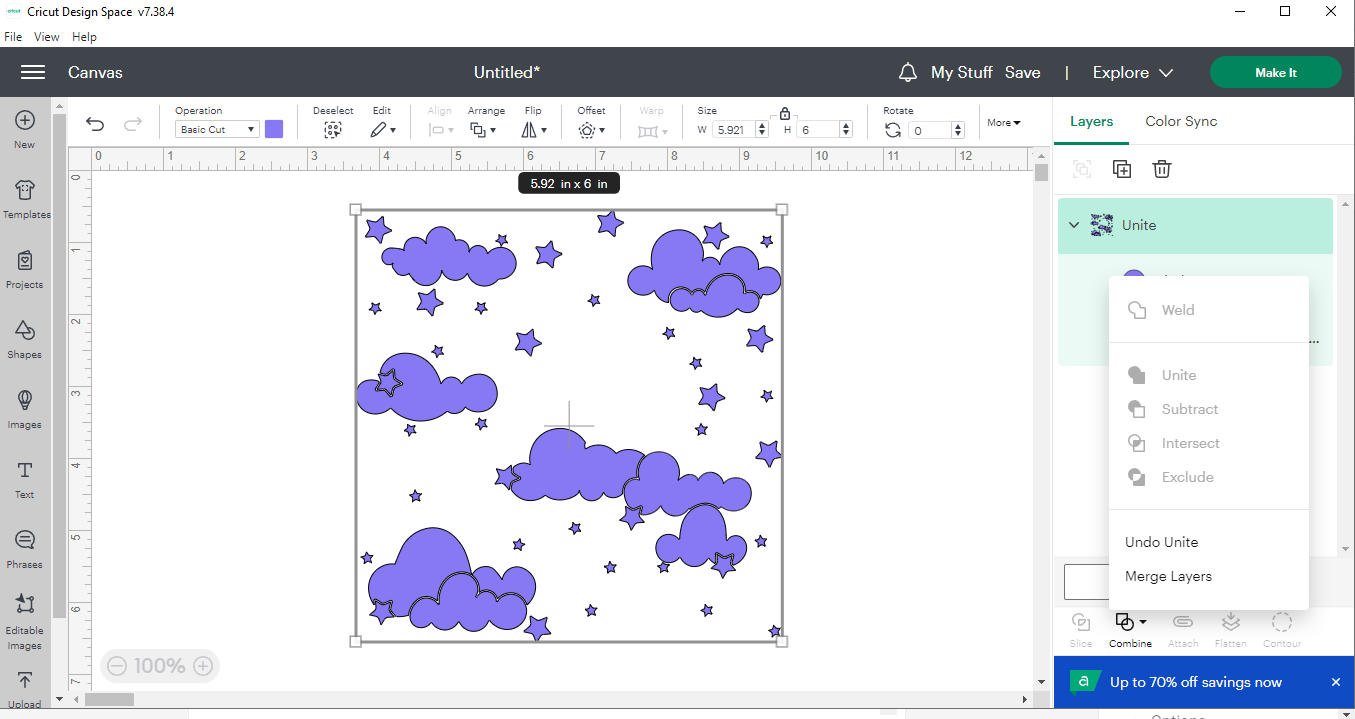
To do this I added a circle to my canvas, sized in manually to fit in the space, then united the two images.


Here's the aforementioned circle in place:


I then decided an offset might look nice, and played around with the scale to get the sizing I wanted.


That open space, where the balloon was, needed something though. A short name, or initials, fit perfectly depending on the sizing and font you choose.


I also added the same size offset to the name as we used on the image, and changed my colors to match.


Then I united my black offsets, and my purple images so they'd cut in 2 pieces, rather than 4.


Centering them, just for the visual.


All finished!! 
What we started with, and what we came up with!


Have fun playing around in Design Space, you can even download it and begin before you purchase your machine!


Have a great day,

Craftin' Wife